



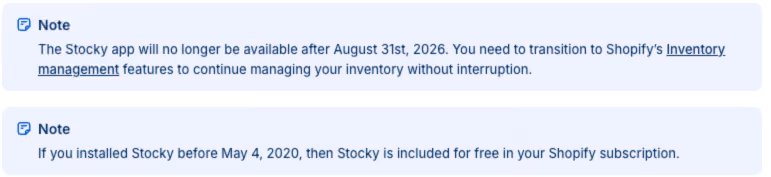
Shopify quietly added a notice to its Help Centre confirming that the Stocky app will no longer be available after 31 August 2026. If you rely on Stocky for purchase orders, stock counts, supplier management, forecasting, or multi-location workflows, this matters.
This is not a change you can ignore until the last minute. Inventory is operational. If it breaks, everything breaks: customer experience, fulfillment, cash flow, and reporting.
Here’s what’s changing, who it impacts, and what a sensible transition plan looks like.
“This announcement certainly isn’t a surprise, but there’s certain (very specific!) Stocky features that are not Shopify native yet. There’s absolutely workflow changes to navigate here, and preparation is essential.” - Joseph Brown, Operations Director
What's Happening to Stocky?
The depreciation of Stocky has been coming for a while. Key workflows like stock transfers and parts of forecasting/replenishment controls have already been pulled out of Stocky and shifted into Shopify admin, so Stocky is becoming more of a legacy layer than a core operations tool.
If you rely on Stocky day to day, now’s the moment to map what you use it for (POs, receiving, stocktakes, transfers, forecasting) and make sure each workflow has a clear home inside Shopify’s native inventory features before the August 2026 deadline.
Who this impacts most
1) Shopify POS Pro teams using Stocky daily: If Stocky is baked into retail ops, the risk is not the tool disappearing. The risk is a half-migration where staff workflows drift and accuracy drops.
2) Multi-location teams relying on transfers: Transfers are a pressure point, so validate your “create, pick, ship, receive, reconcile” flow early. Shopify has recently upgraded transfers in POS, letting staff fulfil outgoing transfers and receive incoming ones directly on the device, with barcode scanning, real-time status tracking, and permissions controls. Outgoing transfers sit under Orders and incoming under Products, reducing reliance on admin-only workflows or external apps while improving stock accuracy across locations.
3) Teams using Stocky for purchasing discipline: Some merchants use Stocky as a lightweight PO tool. Others depend on it for a structured buying rhythm. If Stocky drives decisions, not just admin, treat this as an ops project, not an app swap.
4) Merchants who assumed Stocky was simply “included”: Stocky is often treated as background infrastructure, especially for POS Pro merchants. Shopify’s own guidance is to move to native inventory features, so it’s worth pressure-testing what “native” covers for your business and where you might need additional support.
What changes in practice
Merchants will not feel the impact because Stocky disappears. They will feel it when a workflow no longer behaves how their team expects and starts to cause disruptions throughout the business. What changes for your Shopify store will be dependant on what workflows are currently relying on Stocky.
Inventory accuracy and stock control: Any tooling change can temporarily reduce stock accuracy, especially if teams have muscle memory around one interface. This typically shows up as overselling, stockouts, and messy adjustments.
Transfers between locations: Shopify is moving transfers to Shopify admin. But there are limitations to be aware of if you used Stocky’s replenishment and inventory level controls.
Purchase orders and receiving: Shopify positions purchase orders and transfers as part of its built-in inventory toolkit. If Stocky has been central to POs and receiving, confirm where the future process will live and how the team will operate day to day.
Reporting and operational visibility: ABC analysis is now native in Shopify admin, which is a good signal that Shopify is pulling the most relied-on Stocky-style reporting into core. Even if the basics are covered, you still need to make sure your team has clear visibility, consistent routines, and accountability around stock accuracy and replenishment.
What merchants should do if you’re still using Stocky
To avoid disruption Shopify merchants should plan ahead if they’re still using Stocky as part of your inventory workflow.
Step 1: Audit how you actually use Stocky
Do not start by looking for “a replacement”. Start by listing workflows on how you use Stocky today:
- Stock counts and adjustments
- Purchase orders and receiving
- Transfers between locations
- Supplier workflows
- Low stock monitoring and reorder habits
- Reporting requirements
- Integrations
Then list your integrations that depend on Stocky data, for example:
- Apps pulling purchase orders, supplier data, or stock adjustments
- Reports, connectors, or custom scripts using Stocky exports or API data
- Replenishment of back room stock to shop floor
Label each item as:
- Can be handled in Shopify admin and POS
- Needs a new tool
- Needs a process change or training
Step 2: Protect your data
Before anyone changes tooling, make sure you have what you need, especially around transfers given the historical transfer visibility deadline in Stocky. Export what matters, document current workflows, and capture the settings and supplier details the business relies on.
Step 3: Define what “good” looks like
There’s a big difference between:
- “We just need stock to stay accurate.”
- “We need structured purchasing, multi-location operations, and repeatable processes.”
Be honest, because that decision determines whether native Shopify is enough or whether you need extra tooling layered on. We recommend taking this as an opportunity to audit your wider tech stack to ensure future scalability, it can often help in the decision making process and cause less technical headaches as your business grows.
Step 4: Pilot and run in parallel
The lowest-risk path is parallel running:
- Compare stock accuracy
- Identify training gaps
- Stress-test peak periods
- Protect purchasing cadence
Step 5: Train the team and lock the process
Inventory transitions fail when ownership is unclear. Make roles, checklists, and accountability explicit. Consider what permissions you’ll need in place to adjust roles to ensure staff can access the areas of Shopify Admin that they’ll need.
What Stocky being retired means longer term
This looks like Shopify consolidating more operational inventory functions into the core admin and POS experience. That can be a positive, fewer moving parts and fewer dependencies. But if you relied on Stocky’s specific workflows, you need a plan well before 31 August 2026.
We’ve put together a free Stocky audit checklist to help brands map out what internal operations will be affected. Download your copy.
Stock takes: what Stocky covers, and the closest native workarounds
It’s worth noting that if you’re currently using Stocky, you’d have become comfortable with its dedicated Stocktakes workflow (counting inventory manually or via barcode scanning, then syncing adjustments back to Shopify).
Shopify admin doesn’t currently offer a like-for-like stocktake experience in the same way. For merchants who need a structured stocktake workflow (multi-device counting, variance reports, audit trail), you’re typically looking at a dedicated stocktake app rather than a pure native flow.
For small stock takes, Shopify has a free tool called Quick Count. Once added to Shopify POS, staff will be able to click on a product and update the quantity manually or with a barcode scanner.
A few limitations to consider with Quick Count is that it only counts On Hand inventory, covering Available, Unavailable and Committed stock. If you have more than 1000 product variants, it may not be the best solution for you just yet.
Stock adjustments alternatives in Shopify
Not every stock issue shows up during a stocktake. Adjustments are the everyday changes you make to inventory levels outside of a count. Think breakages, write-offs, returns that don’t match the original receipt, supplier short-ships, mis-picks, or a simple “we found a box in the wrong place”.
You can make adjustments directly in Shopify Admin, and you can also adjust stock via POS (including Quick Count). The workflow is simple and accessible, which is good for speed.
The limitation is governance. Shopify lets you change the number, but it does not natively capture a reason in a way most ops teams would recognise as audit-friendly.
That makes it harder to spot patterns, assign accountability, or explain shrinkage over time.
Barcode label printing: not built-in, but there is an official Shopify route
If you relied on Stocky-style barcode workflows, it’s worth calling out that barcode label printing isn’t a core Shopify admin feature by default. Shopify’s recommended approach is the Retail Barcode Labels app, which lets you design and print barcode labels from within Shopify (with a supported label printer).
So in most cases, merchants will need:
- Retail Barcode Labels (Shopify) or another barcode printing app, plus
- Compatible label printing hardware.
Min/Max Replenishment in Shopify: What Replaces Stocky?
Min/max replenishment is one of those features that stops inventory from drifting off course. It lets you set a “too low” point and a “don’t overdo it” ceiling per SKU, so your team has clear reorder points to work from.
Stocky gave merchants a simple way to work with min/max thresholds. With Stocky being retired, Shopify Admin doesn’t currently offer a native min/max replacement.
Someone needs to own the routine: checking low stock, deciding quantities, and creating POs or transfers consistently, otherwise you’ll see more stockouts, more reactive buying, and more reliance on spreadsheets.
Transfer orders between locations on Shopify
Whether you’re shifting inventory from a warehouse to a store, rebalancing bestsellers across branches, or moving units to support a campaign, transfers are what stop stock movement turning into manual adjustments and guesswork.
The key is process. A transfer is only “accurate” when teams follow the same steps every time: create the transfer, pick and dispatch, receive, reconcile exceptions, then close it out.
Shopify (Admin and POS)
Shopify has brought transfers into Shopify Admin, replacing the Stocky-based workflow with a native transfer order flow. You can create a transfer, assign an origin and destination location, add SKUs and quantities, then work through the transfer lifecycle from creation to receipt.
When the receiving step is completed, Shopify updates inventory automatically, which reduces the need for manual corrections.
Transfers can also be used more broadly than “warehouse to store”. Because the origin or destination can be flexible, teams sometimes use transfers as a structured way to log stock arriving into a location before it’s fully put away or distributed.
What you need to know about stock transfers in Shopify:
- Free to use in Shopify Admin
- Requires a POS Pro to manage transfers on Shopify POS
- Inventory updates on completion, reducing manual reconciliation
- Useful beyond pure inter-location transfers if you need a consistent stock movement workflow
Purchasing and receiving stock on Shopify (without Stocky)
Getting stock into the building is one thing. Getting it into Shopify accurately is what protects cash flow, availability, and reporting. If Stocky was your backbone for purchase orders and receiving, the risk now is not “can we receive stock?”, it’s “can we do it consistently, with the right checks, every time?”
Receiving orders should have a repeatable workflow to confirm what was ordered, what arrived, log any discrepancies, then update inventory at the right location so teams can trust what’s available to sell.
Shopify (Admin and POS)
Shopify has long supported purchase orders in Admin, but Shopify is pushing merchants towards using Transfers as the primary way to receive stock, because the transfer workflow is more structured and works across more scenarios.
In practice, you can create a transfer in Shopify Admin, set the destination as your warehouse or store, and leave the origin blank where appropriate (because origins typically need to be Shopify locations). You then manage the receiving step in the same flow, and inventory updates once the transfer is completed. This gives you one consistent receiving motion that can also be used for other stock movement use cases.
Purchase orders still exist, but they can feel like the “older lane”. If you keep them, you need to be clear internally when a team should use a PO vs a Transfer, otherwise receiving becomes messy fast.
What you need to know about purchasing and receiving in Shopify:
- Free to use in Shopify Admin
- Destination-based receiving is straightforward for warehouses and stores
- Inventory updates on completion, which helps reduce manual adjustments
- Purchase orders are still available, but they’re generally a simpler, less feature-rich route
- If you run both POs and Transfers, you’ll need a strict rule set or teams will split processes and lose consistency
Building an Inventory Management Setup That Scales
With Stocky going away, businesses should see this as an opportunity to audit their entire tech stack and inventory management setup. As your brand scales, the systems, workflows and technology that you put in place can help save hours of manual work with just a bit of careful planning.
Apps like Pimsical’s Stock Take Inventory Count app cover what Stocky once did, such as Stock takes, inventory adjustments, Replenishment Limits, Transfer orders and more.
Every business is unique and there may be specific workflows that you have within your inventory management system that require more attention or changes. Using our Stocky Audit sheet will help you analyse current workflows and establish the next steps for your inventory management setup.
Want help mapping your Stocky migration?
As a Shopify Platinum Agency, we can help map your current Stocky workflows and rebuild your inventory management setup for scale and growth.
Not all businesses are the same and there may be some nuances with how you currently handle inventory.
Looking for a Shopify Agency? Get in touch.